MatchMaker is designed to help Team Pickers and Coaches create fair, balanced teams quickly and easily. This guide explains the main features of the app and takes you through each step, from selecting available players to recording the final score.
AVAILABLE PLAYERS
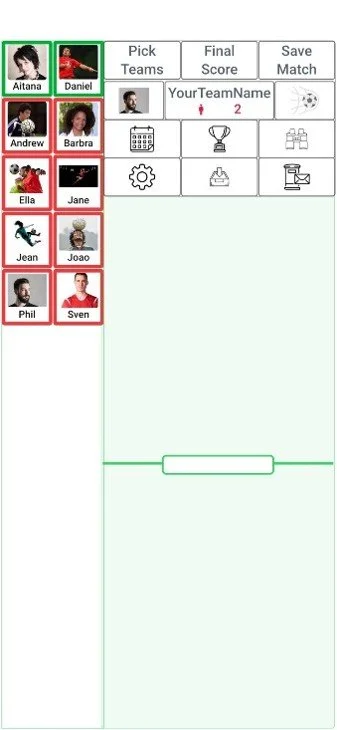
Before creating teams, select the players who are available for the next match.
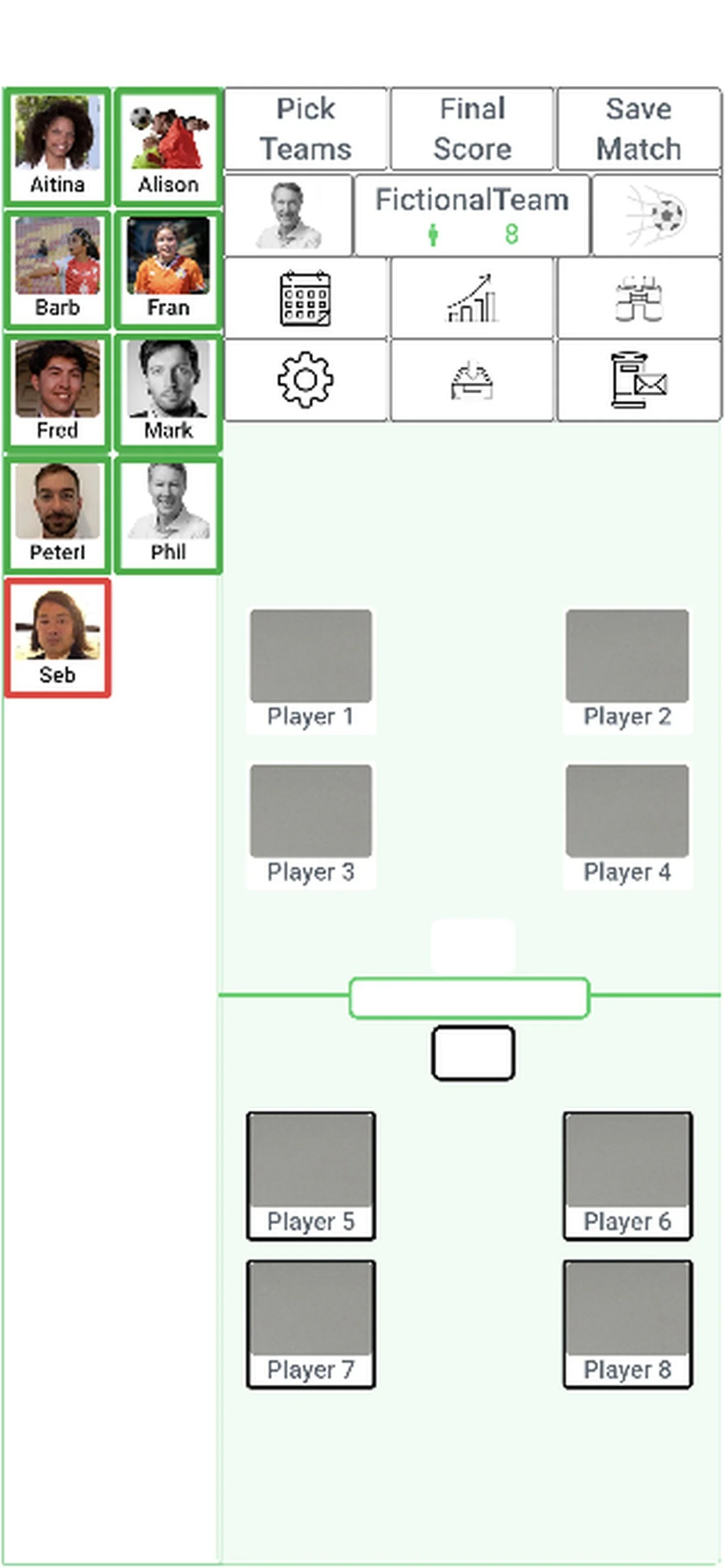
Players with a green border are available to play. Players with a red border are unavailable.
If a player's availability changes, simply tap their photo to switch between available (green) and unavailable (red).
MatchMaker will use only the available players when creating balanced teams for the next game.
PICK TEAMS
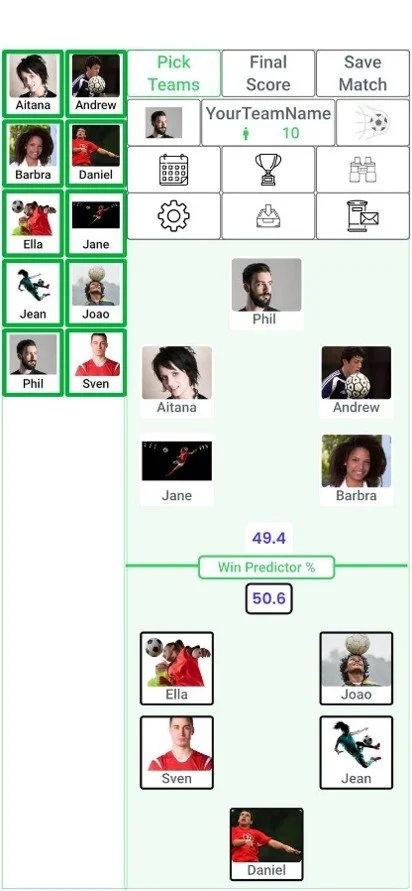
Once you've selected the available players, tap Pick Teams.
MatchMaker analyses the available squad and automatically selects what it believes are the fairest teams. It also displays a Win Predictor, estimating each team's chance of winning. For example, one team might have a 49.4% chance of winning while the other has a 50.6% chance.
The closer the percentages are to 50% vs 50%, the more evenly balanced MatchMaker believes the teams will be.
SWAP PLAYERS
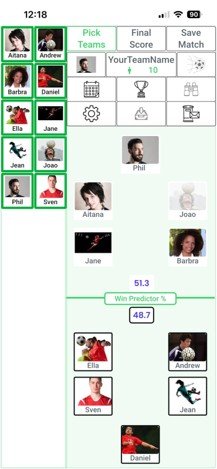
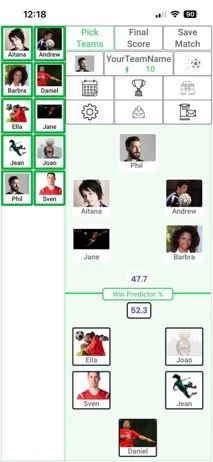
If you'd like to adjust MatchMaker's team selection, you can swap players between the two teams while using the Win Predictor as a guide.
To swap players, tap one player on the pitch until they begin to blink, then tap a player on the opposing team. The two players will exchange places.
After each swap, the Win Predictor updates automatically to estimate each team's chance of winning. The closer the prediction is to 50% vs 50%, the more evenly balanced MatchMaker believes the teams are.
MatchMaker learns from every recorded match, so its predictions become more accurate as more results are saved. If your squad is new, or a player is returning from injury or has recently joined the team, you may decide to adjust the teams using your own judgement before the match begins.
RECORD FINAL SCORE
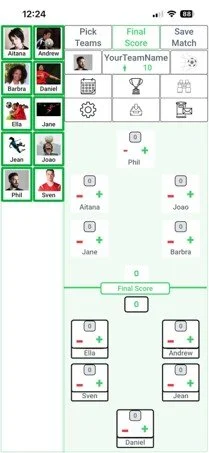
After the match has finished, tap the Final Score area to record the result.
Enter the final score, then tap the players who scored each goal. MatchMaker records this information and uses it to update player statistics and improve future team selections.
As more matches are recorded, MatchMaker builds a better understanding of each player's ability, making its team selections increasingly accurate over time.
SAVE MATCH
Once you've checked the final score and goal scorers, tap Save Match.
A confirmation screen will appear where you can review the match details before saving them.
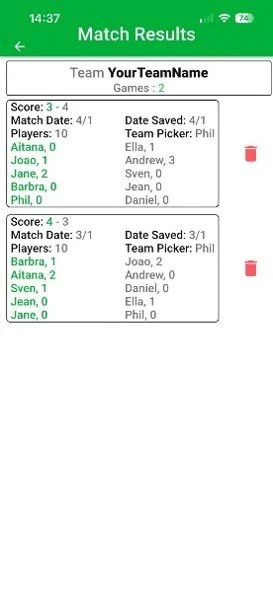
If your team has records of previous matches, you can also view those historic results in MatchMaker. This gives the app more data to analyse, helping it build more accurate player ratings and create even better balanced teams.
CREATE A NEW TEAM
You can create up to five squads, with up to 100 players in each squad.
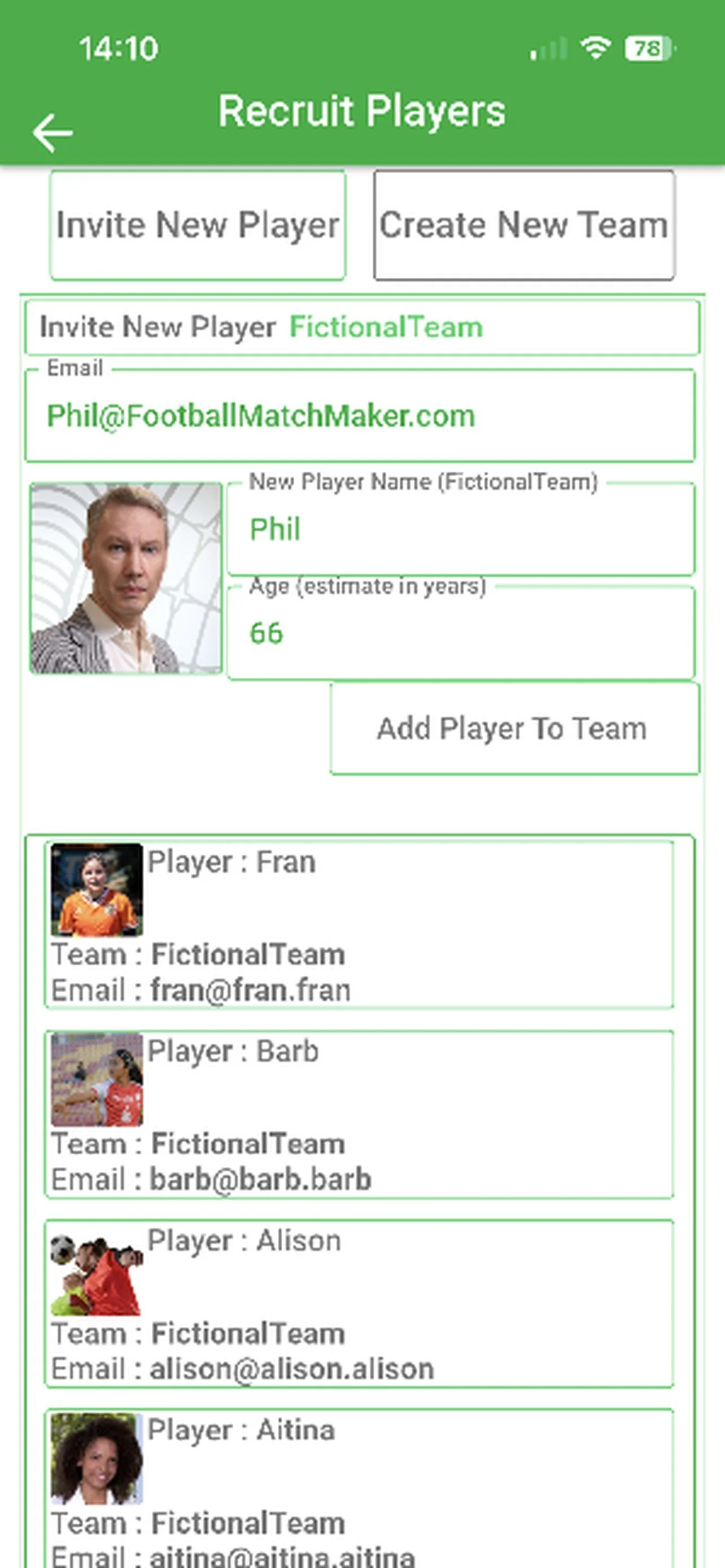
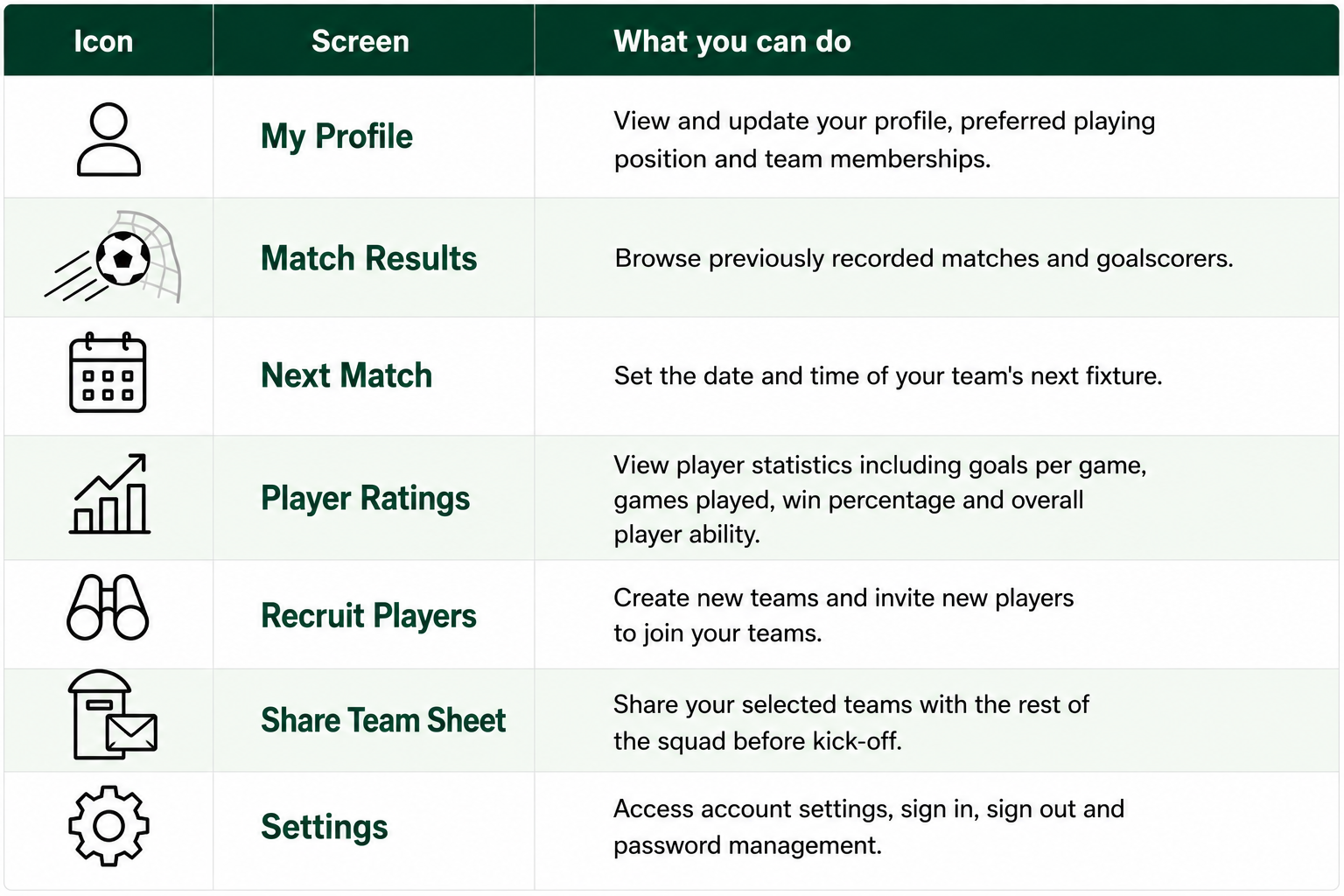
To create a new team, tap Create New Team after tapping the binoculars icon from the home screen. Once the team has been created, select Invite New Player to add players to your squad.
When inviting a player, enter their name, email address and age. You can also add a profile picture to help other players recognise them.
If the invited player has a MatchMaker account or later signs up to MatchMaker using the same email address (that you used), they will automatically be linked to their player record and will be able to access the team's shared data.
MATCHMAKER’S ICONS
Android Users - Sign up for early access
〰️
Android Users - Sign up for early access 〰️
Join up to 5 teams (4 to 7-a-side).
Add up to 100 players to each team.
MatchMaker is available free of charge during its initial launch period.

MatchMaker is currently, free to download and use. Until we add a paid-for subscription capability to MatchMaker, all features will remain completely free. After a subscription service is launched, everyone using MatchMaker will get a further 3 months' free to decide if they want to pay for a subscription.